On this page
Part 1 · Get started
Quick start
Five steps from nothing to your first read. Each one has its own section further down.
Install the extension and pin it
Get it from the Chrome Web Store, then pin it so it's always one click away. How
Open a coin on a site you already use
pump.fun, Axiom, GMGN, Photon, BullX, DEX Screener, Birdeye, Solscan or fomo. Which pages work
Click the Hidden Hand icon
The panel opens beside the page and shows that coin's card. What's on it
Read the score
One number: how much of the coin insiders hold right now. Green is clean, amber is mixed, red is insider-heavy. Reading the score
Want to trade? Make a wallet in the panel
Set a password, send it some SOL, and the buy and sell buttons go live. Set up your wallet
Install and open the panel
Hidden Hand is a Chrome extension. It lives in Chrome's side panel, so it sits next to the chart instead of on top of it.
- The icon. After you install, click the puzzle piece in Chrome's toolbar, then the pin beside Hidden Hand. The icon now stays in the toolbar. Click it to open the panel.
- The panel. It opens down the right side of the window and stays open while you browse. Close it with the X at the top of the panel.
- The page. Keep using the site exactly as you do now. Hidden Hand reads which coin or wallet the page is about and shows its card.
- What you need
- Chrome on a computer, version 137 or newer. The panel doesn't run on phones.
- Installing
- Add the extension from the Chrome Web Store. Updates arrive on their own after that.
- More than one window
- Each Chrome window has its own panel, and each one follows the tab in front in its own window.
- If it ever acts up
- Close the panel and open it again, or restart Chrome. Don't remove the extension: that deletes the trading wallet stored in it. Backups bring it back.
The panel at a glance
This is the panel on a coin's page. The same six parts are always there.
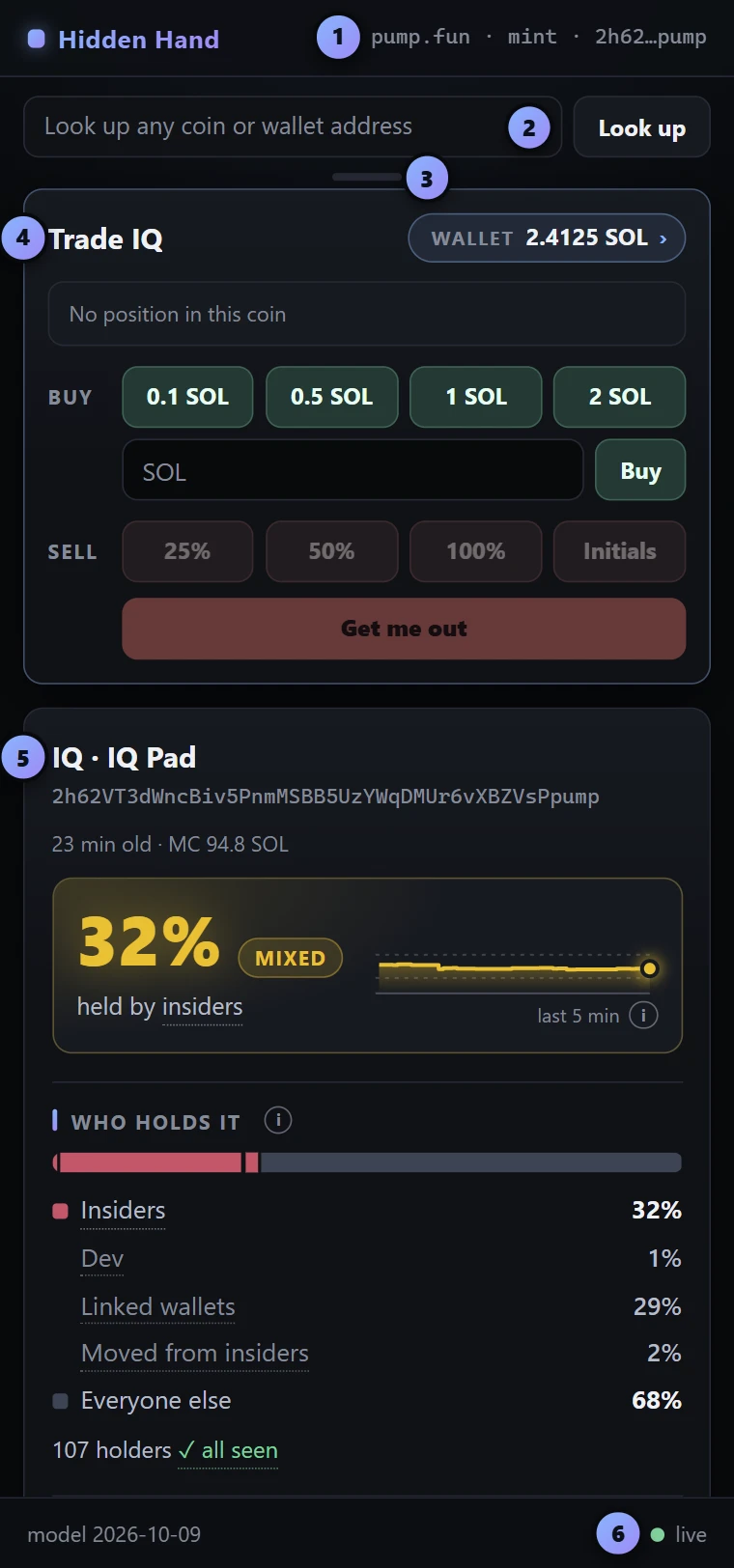
- The page line. The site, what kind of page it is and the address, shortened. A coin page says mint or pair, a wallet page says wallet. It changes as you move between pages and tabs.
- Look up. Paste any coin, pool or wallet address, or a link to one, and open its card without visiting its page. More
- The grip. Drag it to pull the trade card out of the panel and park it anywhere on your screen. More
- The trade card. Your wallet's balance and the buy and sell buttons for the coin on screen. It stays at the top whatever you open below it. More
- The card. Everything Hidden Hand knows about the coin or wallet on the page. Scroll down for the rest. More
- Status. A green dot and "live" mean the service is answering. The date after "model" is the day the wallet groups and wallet records were last rebuilt, which happens every night.
Getting around
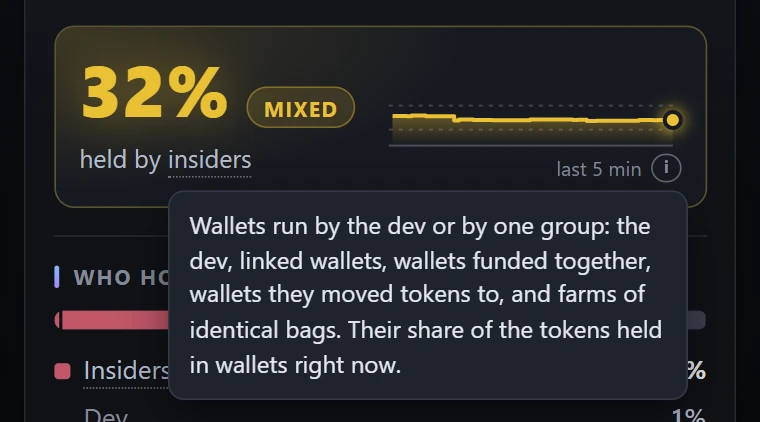
Words explain themselves
Any word with a dotted underline, and every small i, has an explanation behind it. Point at it, or tap it, and a bubble says what it means. You never have to guess what a number is counting.
Tap to dig in, Back to come out
Any row that ends in › opens something: a holder's wallet, a group of linked wallets, the dev. A trail appears at the top of the card showing where you are. Back takes you one step out, and so does Esc or your mouse's back button. Click a name in the trail to jump straight to it.
It keeps itself fresh
While a coin is trading, its card refreshes every 2 seconds. When the coin goes quiet it slows down to about every 10. It holds still while you read a bubble or point at the trend chart, so the numbers don't change under you.
Where it works
Open a coin or a wallet on any of these sites and its card shows up. Switch tabs and the panel follows. Hidden Hand reads one thing from the page: the address in its web address.
| Site | Coin pages | Wallet pages |
|---|---|---|
| pump.fun | Yes | Yes, profiles |
| Axiom | Yes | Yes |
| GMGN | Yes | Yes |
| Photon | Yes | Use Look up |
| BullX | Yes | Use Look up |
| DEX Screener | Yes | Use Look up |
| Birdeye | Yes | Use Look up |
| Solscan | Yes, token pages | Yes, account pages |
| fomo | Yes, Solana coins | Use Look up |
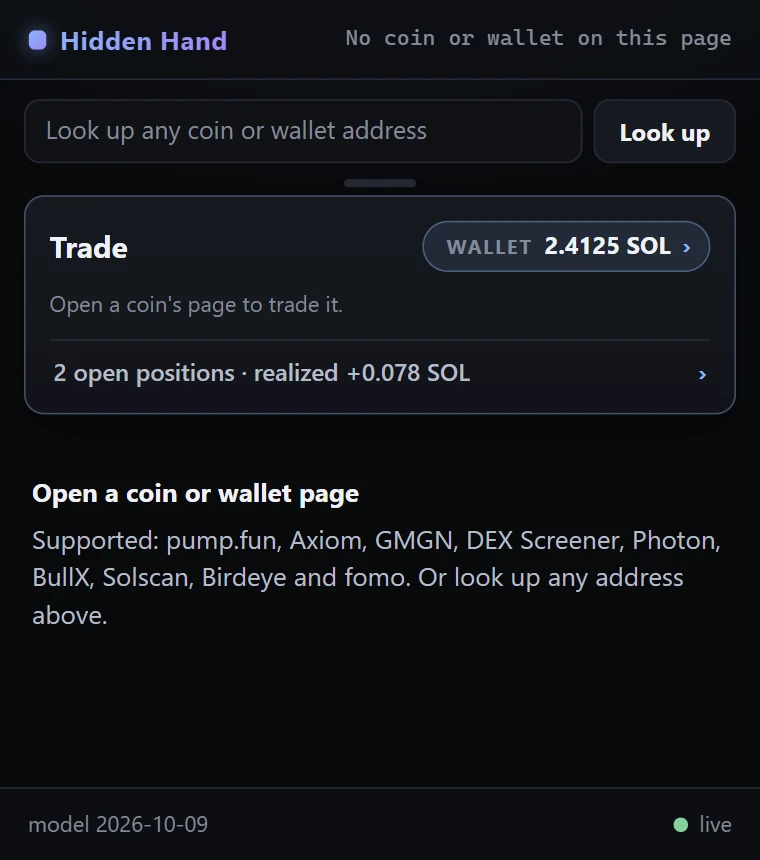
When the panel has nothing to show
No coin or wallet on this page means you're on a home page, a list, or a site Hidden Hand doesn't read. Open a coin, or paste an address into Look up.
No record means the address is real but there's nothing to say yet: a coin the service has never seen trade, or a wallet with no linked group and no trades in the last 30 days.
Hidden Hand covers Solana coins. The trade card stays put the whole time, and it tells you to open a coin's page when there's nothing to trade.
Look up any address
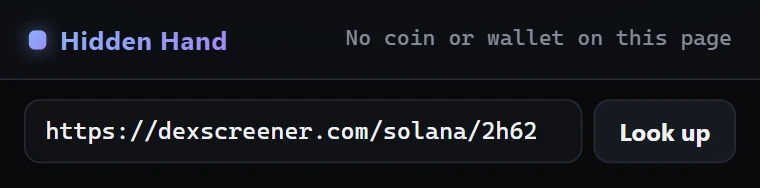
Seen an address on X or in a Telegram chat? Paste it into the box at the top and press Enter. You can paste a coin's address, a pool's address, a wallet's address, or a link that has one of those in it.
- A coin opens its card, on top of whatever you were looking at.
- A wallet opens its card too. If you're on a coin, it also shows where that wallet stands in that coin.
- Back, or Esc, returns you to the page's own card. Esc inside the box clears it.
Part 2 · Read a coin
The coin cards in this part are real coins, as the panel showed them on October 9, 2026. Yours will show whatever coin you have open, as it stands that second.
The score
The big number at the top of every coin's card is the share of the coin that insiders are holding right now. It's the first thing to read and the fastest way to tell a real crowd from a setup.
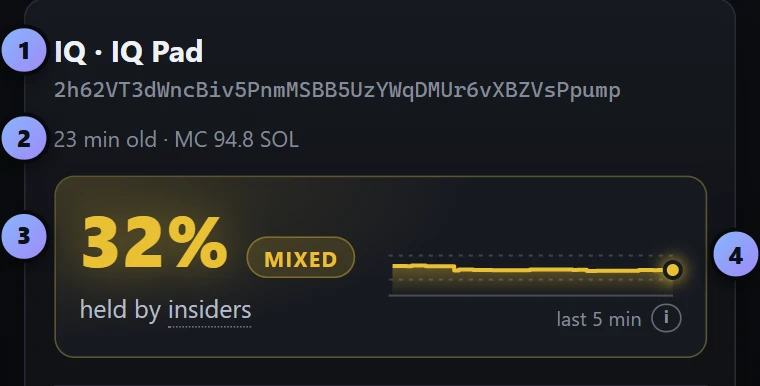
- Name and address. The coin's ticker and name, with its full address underneath.
- The basics. How old the coin is and its market cap in SOL. You may also see "graduated" (it has left its launchpad's curve for a pool), or what it trades against when that isn't SOL.
- The score. The share of the coin held by insiders, with a one-word verdict beside it.
- The trend. That same share over the last 5 minutes. Point at the chart to read any moment. The two faint lines mark 20% and 50%.
The three verdicts
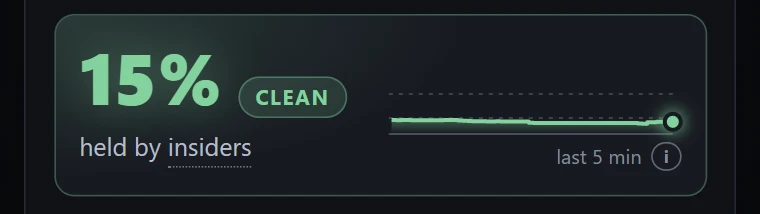
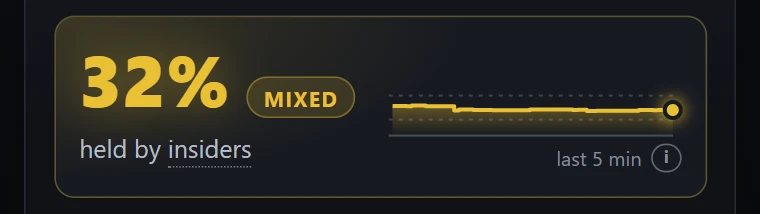
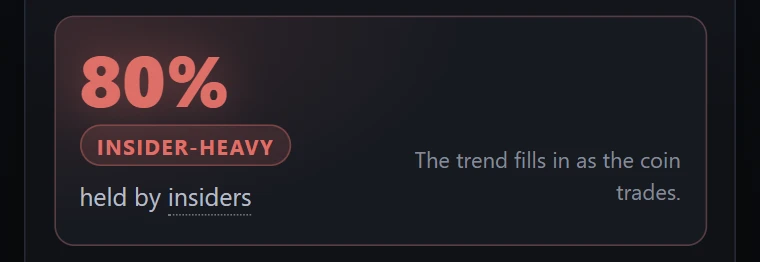
A brand new or quiet coin shows "The trend fills in as the coin trades" where the chart goes, like the red one here.
Who counts as an insider
- The dev
- The wallet that created the coin.
- Linked wallets
- Wallets that look like one owner's: they sign each other's trades, pay each other's fees, move money or coins between them, or buy in lockstep. They count once two or more wallets from one group are in the coin.
- Funded together
- Holders paid by one source before the launch: the same amount of SOL minutes apart, or four or more paid in the same second. This catches fresh wallets no list knows yet.
- Moved from insiders
- Wallets an insider sent tokens to. Moving a bag to a fresh wallet doesn't hide it.
- Identical bags
- Lots of holders with exactly the same bag. That's a farm, not a crowd.
- Not insiders: snipers and bots
- Snipers bought in the launch block, the first 0.4 seconds, and aren't linked to the dev. Bot platforms send many users' orders together. Both are shown on the card, and neither counts toward the score.
Alerts
When something needs your attention before anything else, it sits above the score.
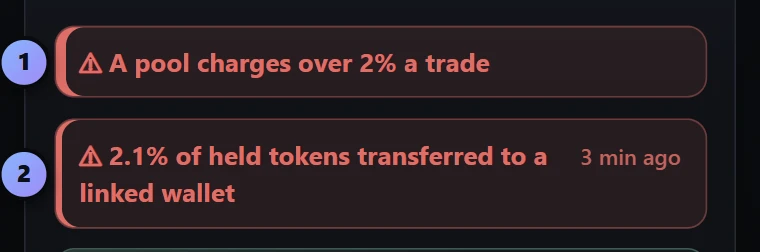
- A risk alert. Something about the token or its pool that can cost you money whatever the chart does. If there's more than one, the alert says "+1 more": point at it to read them all.
- A transfer alert. A wallet just received a big chunk of the coin without buying it. The line says how much and how long ago. Tap it to open the wallet that received it. Amber is notable, red is large.
What a risk alert can say
- Most trading is in a pool its creator can drain.
- Its creator can pull liquidity once it graduates.
- The creator can mint more tokens.
- The creator can freeze holders' tokens.
- A pool charges over 2% a trade.
- The token has a dangerous extension, like a transfer tax.
- It's a mayhem coin: pump's AI agent holds a large block of the supply and can sell it.
Under a drainable pool, the card also says what happened to pools like it over the last 7 days: how many had their liquidity withdrawn, and how fast.
Smaller notes you may see
- "…% of the launch was bundled, by … wallets not linked yet"
- The score only counts wallets it can link. A launch bought up by brand new wallets can score clean, so the card tells you what the launch itself looked like.
- "Read from the lake"
- An older coin, read from the archive. You get its launch and its linked wallets, without the live sections.
- "Launch not fully seen"
- The service wasn't watching when this coin launched. The first minutes fill in later.
Who holds it
The score, broken down. The bar is every token sitting in a wallet, and the rows under it say what each colour is.
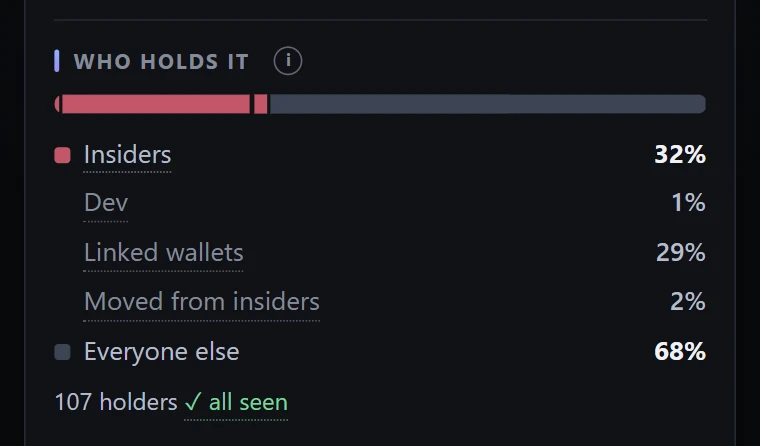
- Rose is insiders, one block for each kind: the dev, linked wallets, funded together, moved from insiders.
- Violet is snipers. They show up as their own row when there are any.
- Grey is everyone else.
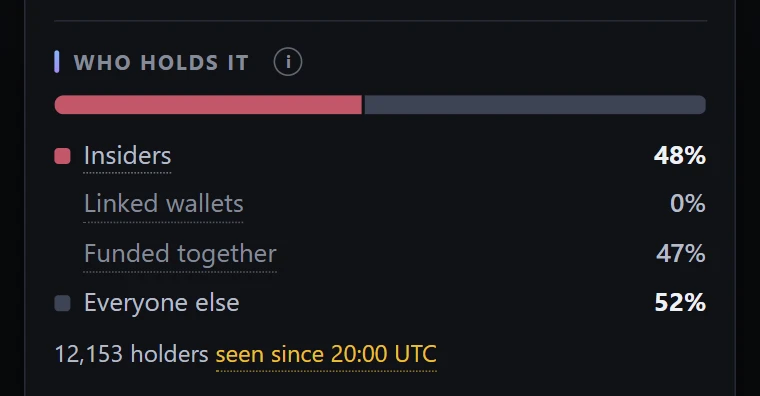
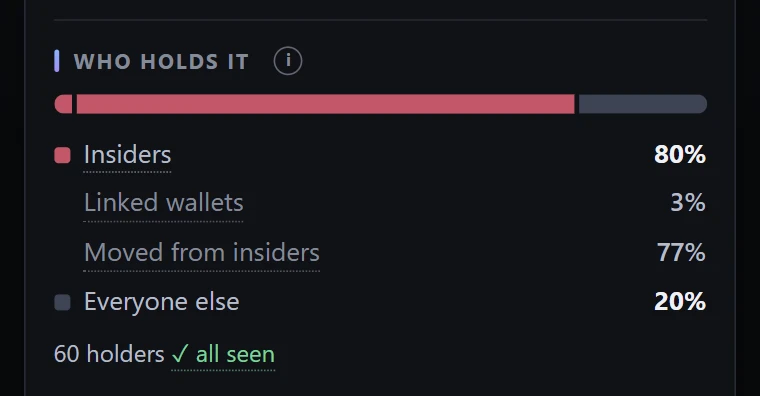
- The holder count. "All seen" means every holder since launch is known. An amber "seen since…" or "some may be missing" means the service wasn't watching the whole time, so the picture isn't complete.
Two more to recognise
Top holders
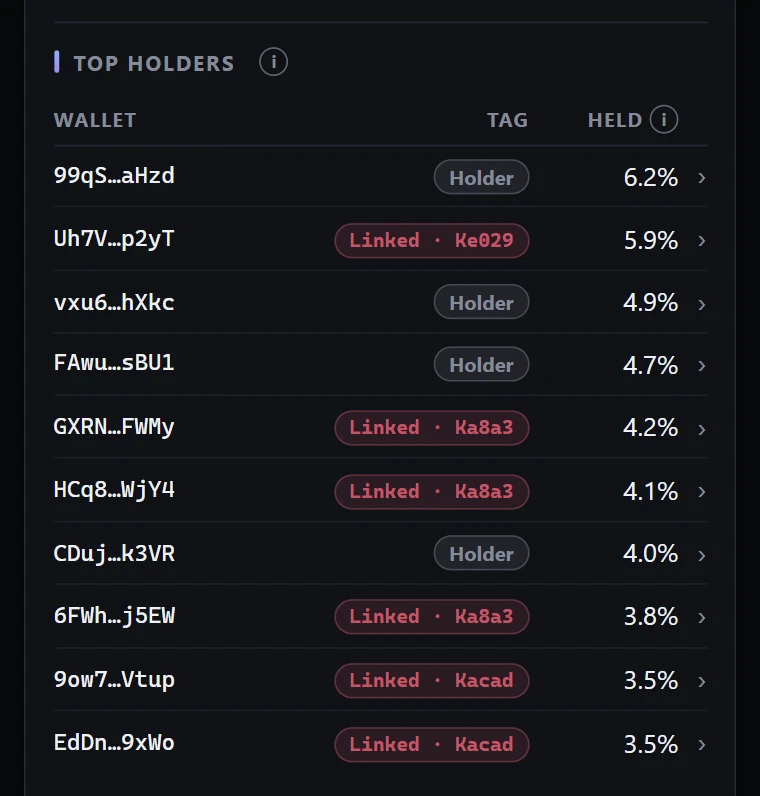
The ten wallets holding the most, biggest first. Held is each wallet's share of the tokens in wallets.
The tag says who the wallet is:
Tap a row to open that wallet. Tap a Linked or Funded tag to open its group in this coin. The letters and numbers after the dot are the group's short name, so two wallets with the same one belong together.
Launch trading
Who bought and sold in the coin's first minutes.
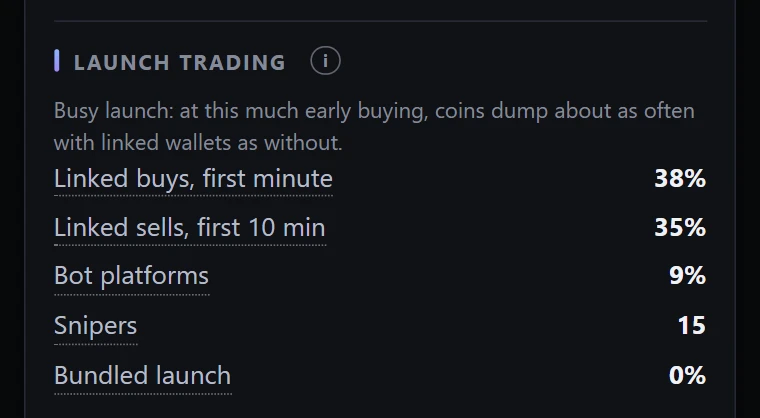
- Linked buys, first minute
- Of the SOL spent buying in the first 60 seconds, the share that came from linked wallets.
- Linked sells, first 10 min
- Of the SOL taken out by selling in the first 10 minutes, the share that went to linked wallets.
- Bot platforms
- Bought in the first minute through custodial trading bots. Not insiders.
- Snipers
- How many wallets bought in the launch block.
- Bundled launch
- The share of the launch block bought in bundles: several wallets in one transaction.
"Busy launch" shows when a lot of SOL came in during the first minute. At that level coins dump about as often with linked wallets as without, so read the linked share as a description, not a warning.
Linked wallets
The groups behind the buying: how much each still holds, and how much it has already sold.
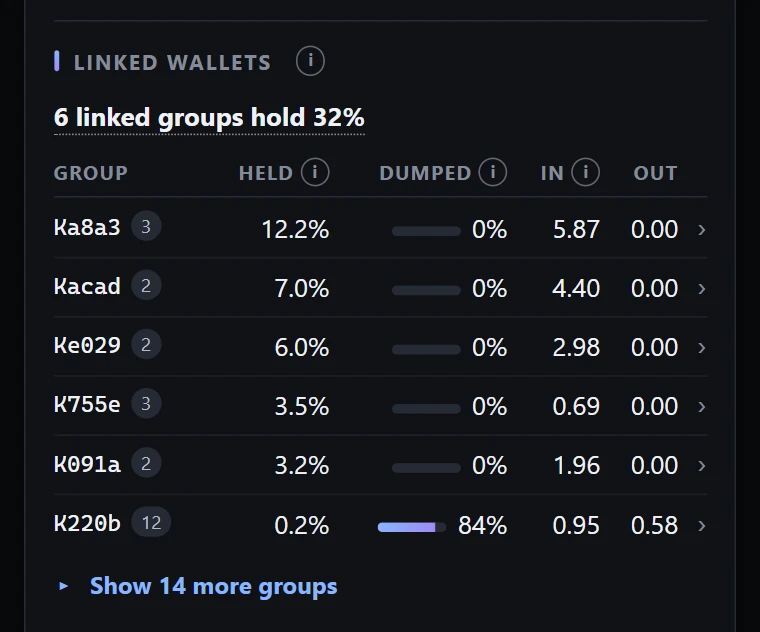
- The top line
- How many groups hold the coin right now and how much between them.
- Group
- The group's short name, and how many of its wallets are in this coin.
- Held
- Its share of the tokens in wallets, counting wallets it moved tokens to.
- Dumped
- Of the group's tokens, the share it has already sold. A full bar means it's out. A dash means it isn't tracked, which is the case for groups funded together.
- In and Out
- SOL the group spent buying and took out selling.
The six groups holding the most are listed. "Show more groups" unfolds the rest, including the ones that have already sold everything.
Open a group
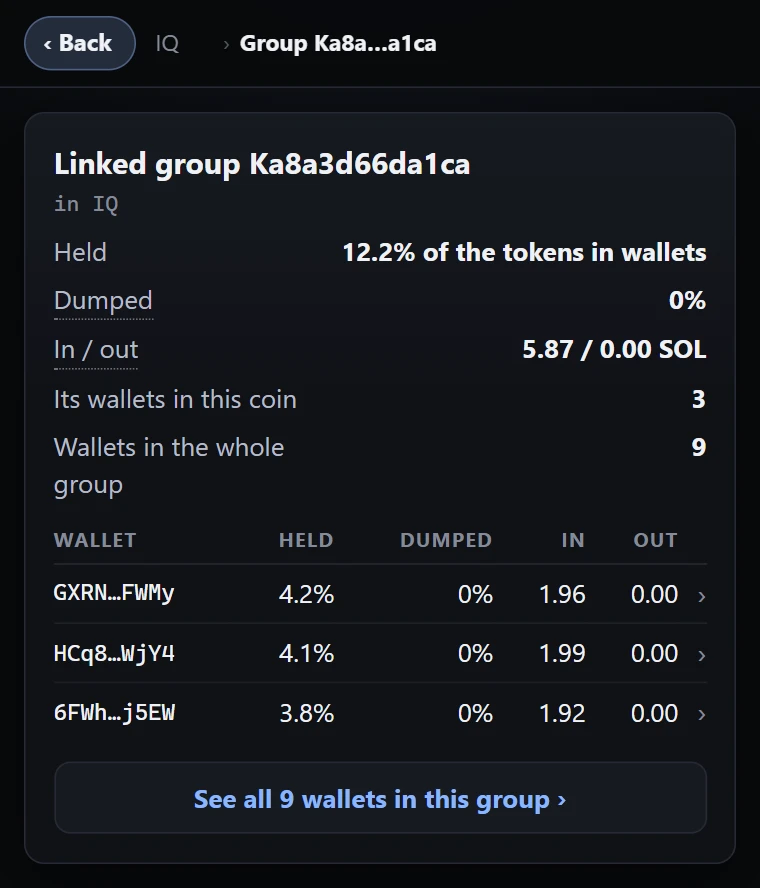
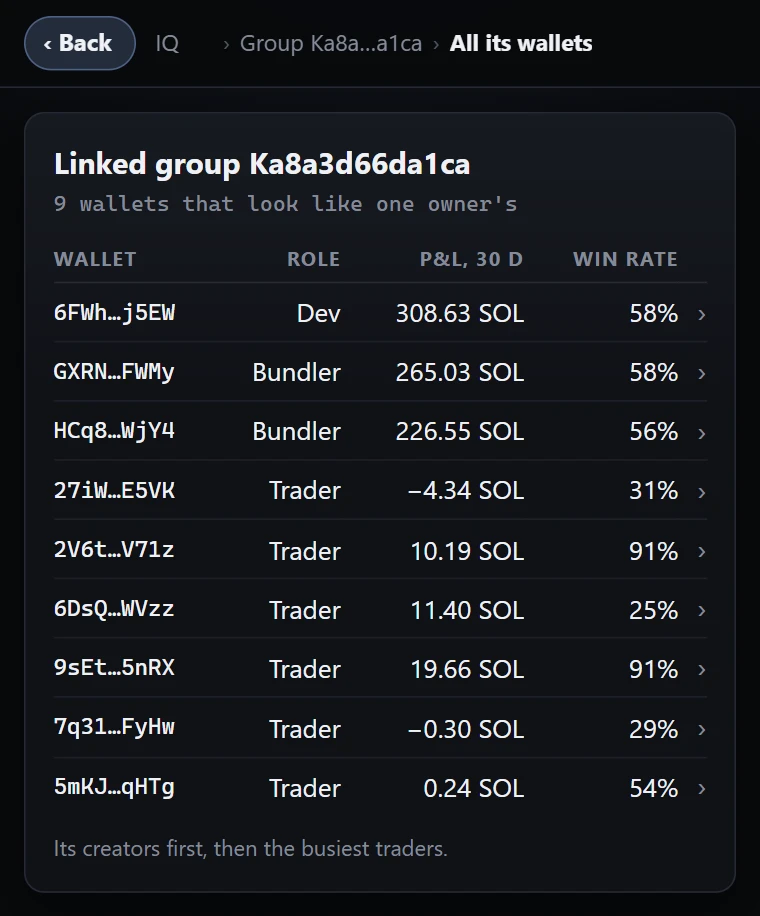
Roles are the part a wallet plays in its group: Dev, Bundler, Trader, Dumper or Mule. For a group that was funded together, the group's page shows the payment that ties each wallet to the others.
What's happening now
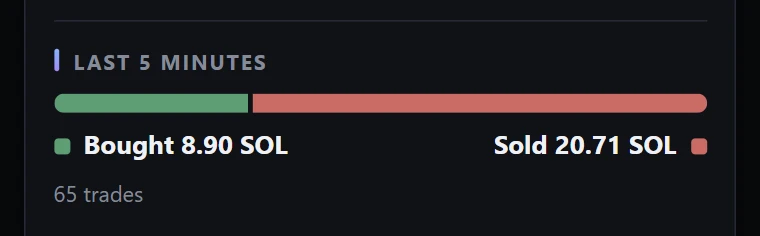
Last 5 minutes
SOL bought against SOL sold, and how many trades that was. Green is buying, red is selling, and both ends are labelled so you never have to rely on the colour.
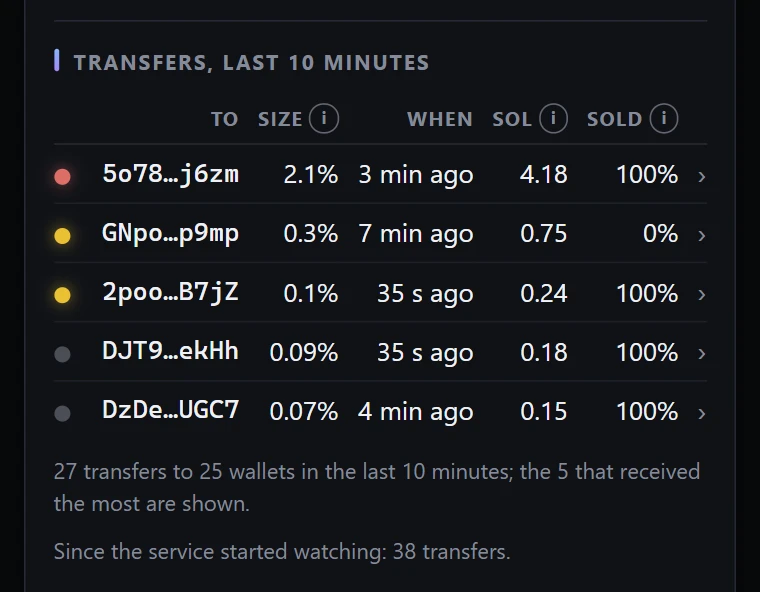
Transfers, last 10 minutes
Tokens that moved from one wallet to another without a trade. A transfer is often a bag being handed to a wallet that sells it, which is why the biggest one becomes the alert at the top of the card.
- To
- The wallet that received the tokens. Tap the row to open it.
- Size
- What it received, as a share of the tokens in wallets.
- SOL
- What selling it would fetch right now.
- Sold
- How much of it the receiver has already sold.
The dot is the size: grey is small, amber is notable, red is large.
Pools
Where the coin actually trades, busiest first, and whether anyone can pull the liquidity out from under you.
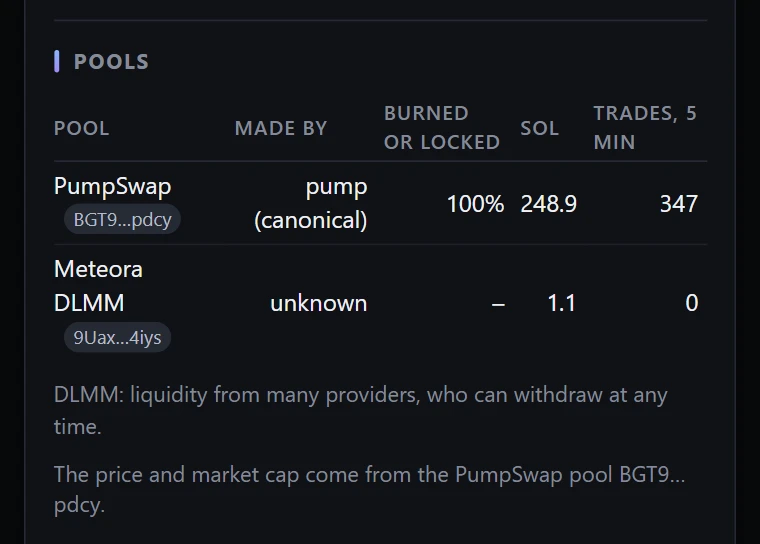
- Pool
- The venue (a bonding curve, PumpSwap, Meteora, Raydium) and the pool's short address.
- Made by
- The coin's own curve, the launchpad it graduated from, or whoever made a custom pool.
- Burned or locked
- How much of the pool's liquidity nobody can take out.
- SOL and Trades, 5 min
- How much SOL is in the pool, and how busy it has been.
Dev and token
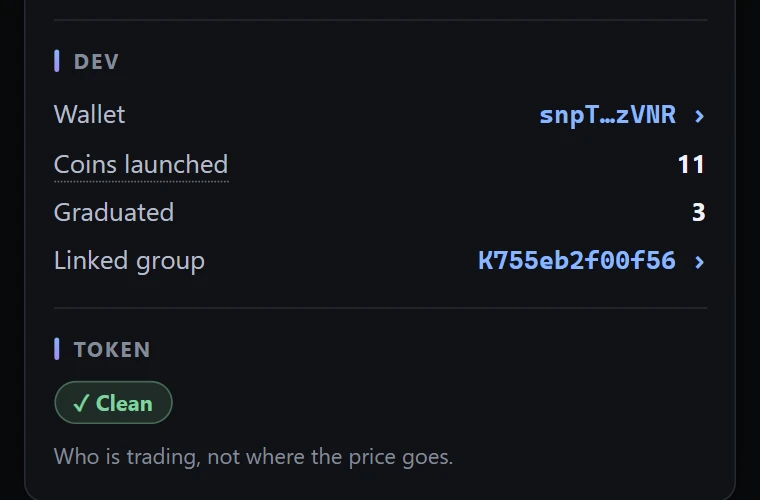
Dev
The wallet that created the coin and its track record: how many coins it has launched over the model's last 30 days, and how many of them graduated. Tap the wallet to open it. If the dev belongs to a linked group, tap the group to see every wallet in it.
Token
✓ Clean means no mint authority, no freeze authority, no dangerous token extensions, and not a mayhem coin. Anything else shows here in red: "mint authority kept", "freeze authority kept", the extension's name, or "mayhem mode".
Part 3 · Read a wallet
A wallet's card
Tap any wallet on a coin's card, or look one up, and you get its card. Opened from a coin, it starts with where the wallet stands in that coin.
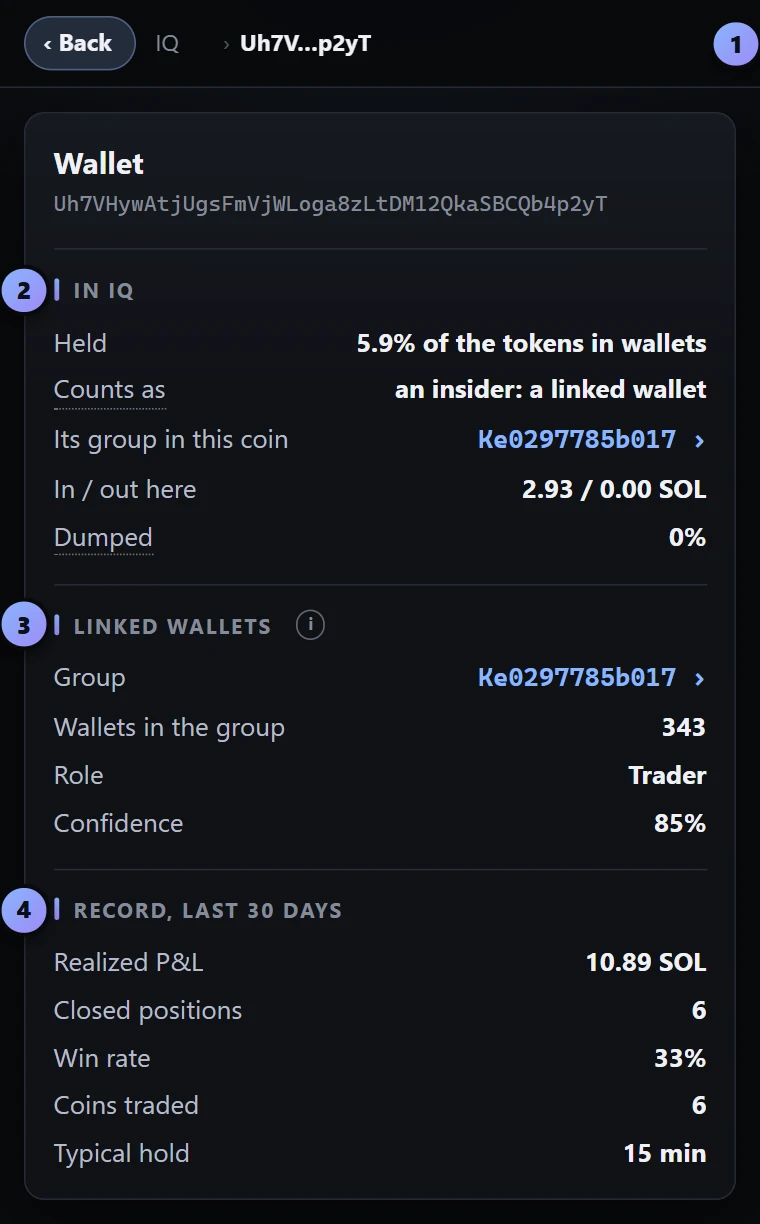
- The trail. Back steps out to the coin. Tap the coin's name to jump there.
- In this coin. What it holds, whether it counts as an insider and why, the SOL it put in and took out here, and how much of its bag it has dumped.
- Linked wallets. The group it belongs to, how many wallets are in that group, the part this wallet plays, and how confident the model is that it belongs. Tap the group to see all of it.
- Record, last 30 days. Realized P&L, closed positions, win rate, coins traded, and how long it typically holds.
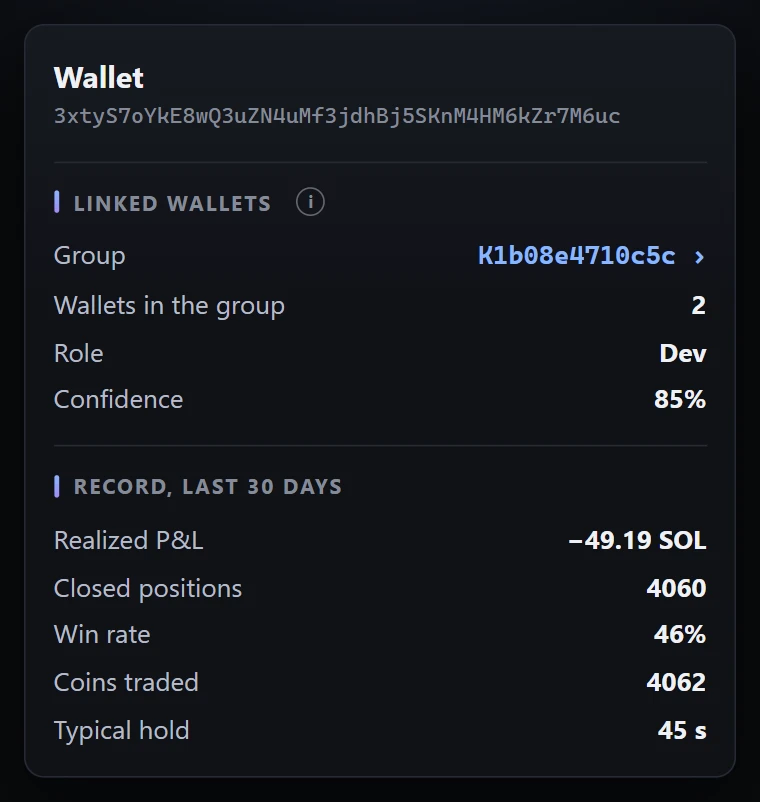
What else a wallet can say
- Not linked to any group
- Nothing ties it to other wallets. It's on its own.
- A single trader
- It belongs to a group, but no other wallet from that group is in this coin. One wallet alone isn't counted as an insider.
- Bot platform
- It trades through a custodial service that sends many users' orders together. That isn't a linked group.
- No record
- No linked group, no bot platform and no trades in the last 30 days.
A wallet's record is the fastest way to check a "smart wallet" someone is telling you to follow.
Part 4 · Trade
Trading is yours to switch on, and everything above works without it. The pictures in this part use an example wallet and made-up numbers.
Set up your trading wallet
Hidden Hand trades from its own wallet, made right in the panel. Its key is encrypted with your password and stays on your device, so trades go out the moment you click, with no popup to approve.
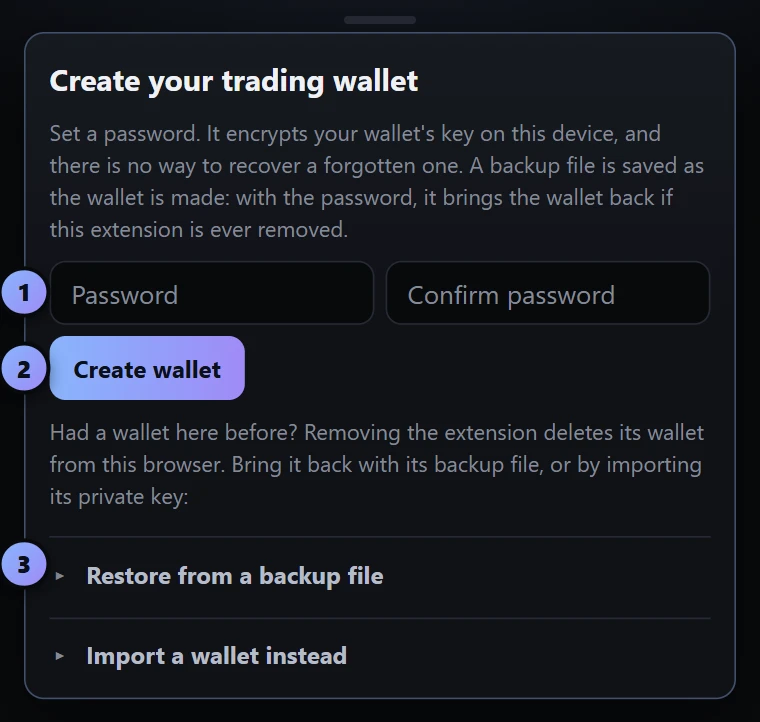
- Choose a password and type it twice. It encrypts your wallet's key on this device.
- Click Create wallet. Your wallet is made in a moment, and a backup file is saved to your Downloads.
- Had a wallet before? Open one of these to bring it back from its backup file, or to import a key from Phantom or Solflare.
Keep the backup file
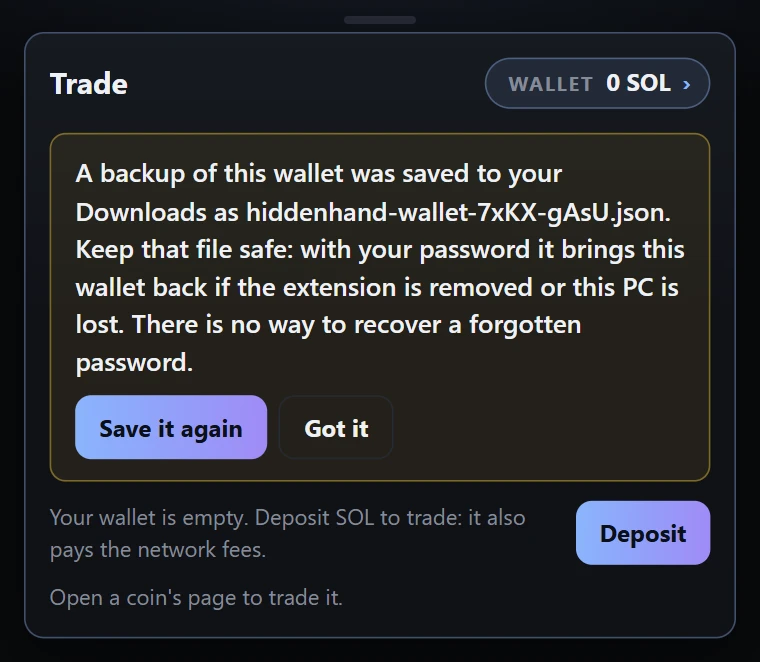
The backup file is your wallet, locked with your password. Its name starts with hiddenhand-wallet. If the extension is ever removed, or this computer is lost, the file and your password bring the wallet back.
- Copy the file somewhere that isn't this computer.
- Keep your password somewhere else. The file is no use without it, to you or to anyone who finds it.
- Click Got it once it's safe. You can save a fresh copy any time under Security.
Bring a wallet back, or bring your own
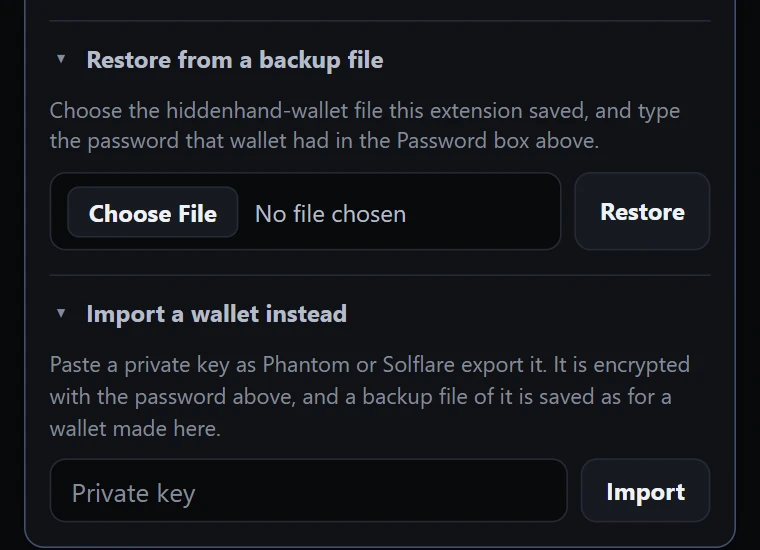
- Restore from a backup file
- Type the password that wallet had in the Password box, choose the hiddenhand-wallet file, and click Restore.
- Import a wallet instead
- Set a password, then paste a private key the way Phantom or Solflare export it. It's encrypted with your password, and it gets a backup file of its own.
A tip: treat this like any hot wallet. Keep in it what you plan to trade with, and keep the rest somewhere else.
Add SOL
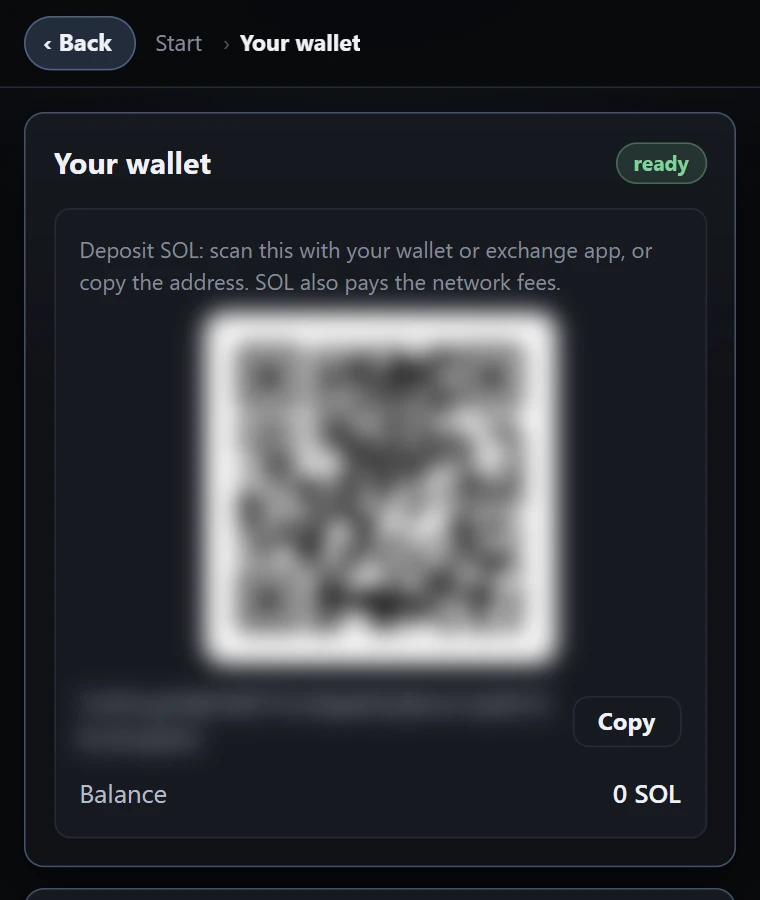
Click Deposit on the trade card. (Once the wallet holds SOL, the button moves: click the wallet button, then Deposit.) Then either:
- scan the QR code with your wallet or exchange app, or
- click Copy and paste the address where you're sending from.
Send SOL from an exchange or from a wallet like Phantom, Solflare or Backpack. The balance on the trade card updates when it arrives.
SOL is what you buy with, and it also pays Solana's network fees, so leave yourself a little spare.
Buy
Open a coin's page and the trade card is ready for that coin. Its name is in the card's title.
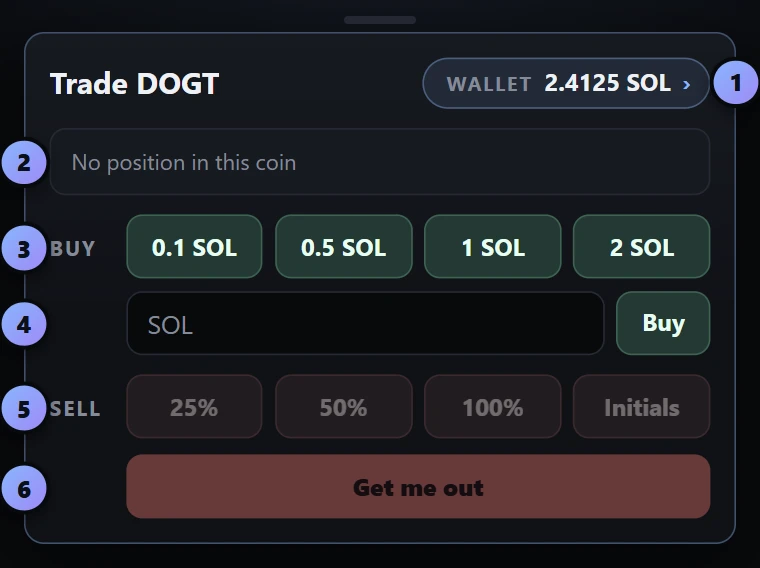
- Your wallet. Your SOL balance. Click it to open your wallet's page: deposit, positions, withdraw, settings and security.
- Your position. What you hold of this coin. Nothing yet.
- Quick buys. One click buys the coin with that much SOL. You can change the four amounts in Settings.
- Your own amount. Type any amount of SOL and press Buy.
- Sells. Greyed out until you hold the coin. More
- Get me out. Sells everything and keeps trying. More
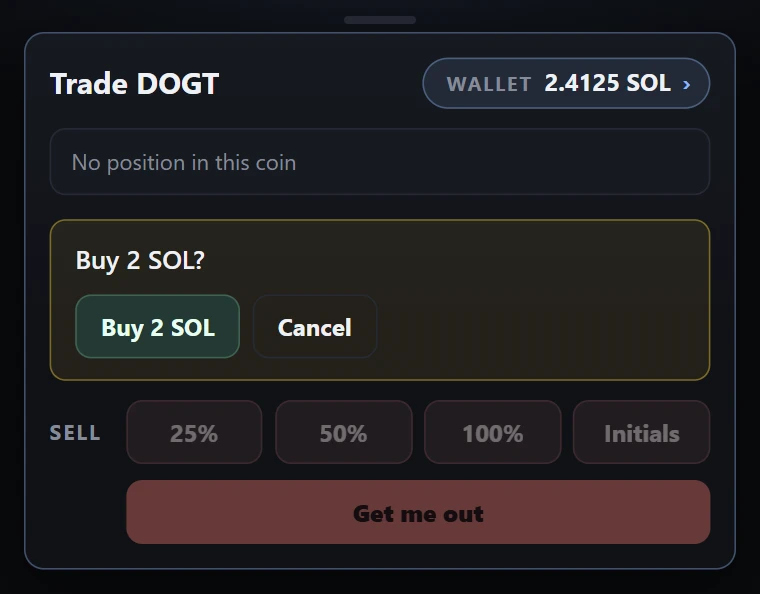
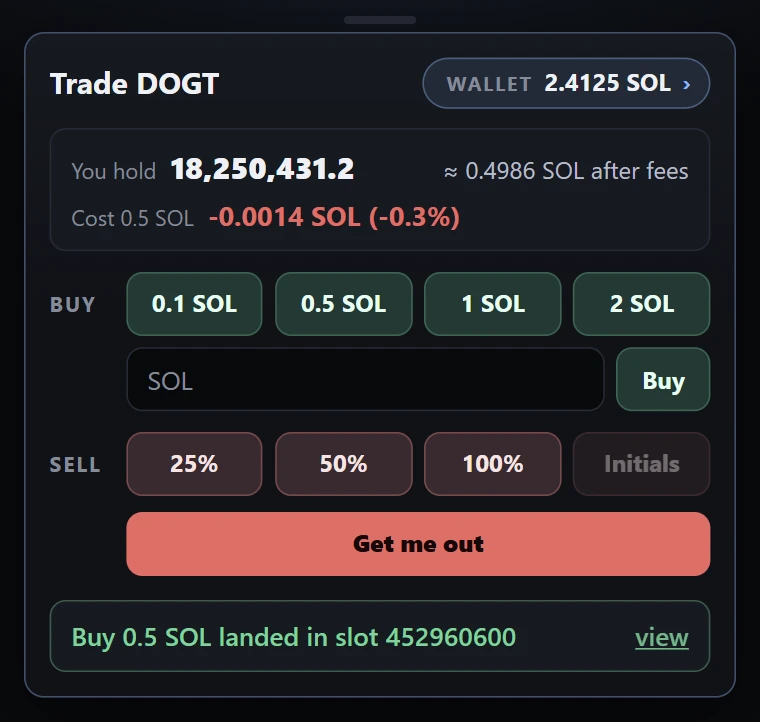
The buttons grey out while a trade is on its way, so you can't double up by accident. If a buy can't be sent, the card says why in plain words, and nothing leaves your wallet.
Sell
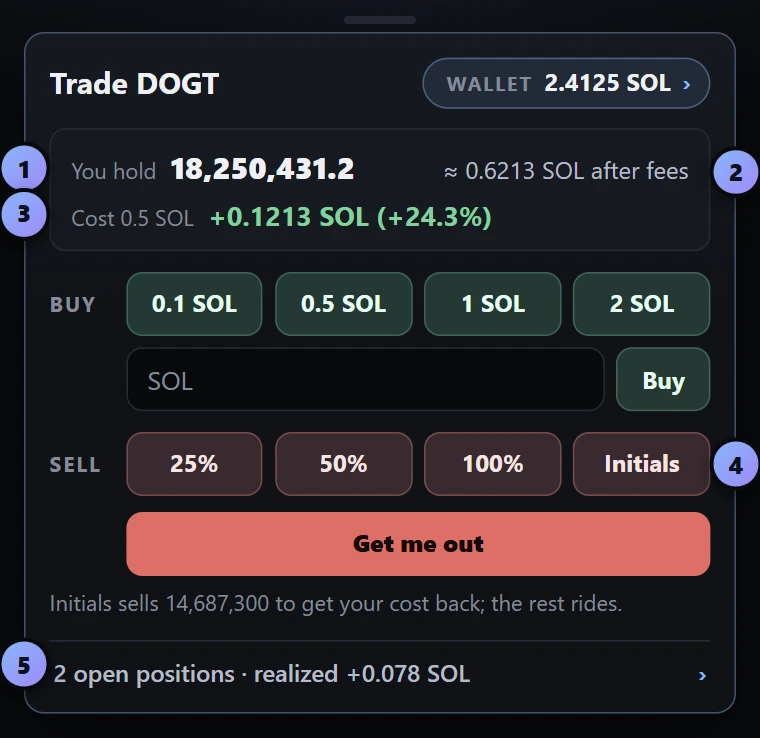
- You hold. Your tokens of this coin.
- Worth. About what selling all of it would bring right now, with fees already taken off.
- Cost and P&L. What the position cost, and how far up or down you are in SOL and percent. Green is up, red is down.
- Initials. Sells just enough to get your cost back and lets the rest ride. It lights up when the position is in profit, and the line under the buttons says how many tokens it will sell.
- All your positions. How many you have open and what you've realized so far. Click it for the full list.
25%, 50% and 100% sell that share of what you hold, in one click. You can change the sizes in Settings. Once you've sold some of a coin, a Realized figure shows what its sales have made so far.
Get me out
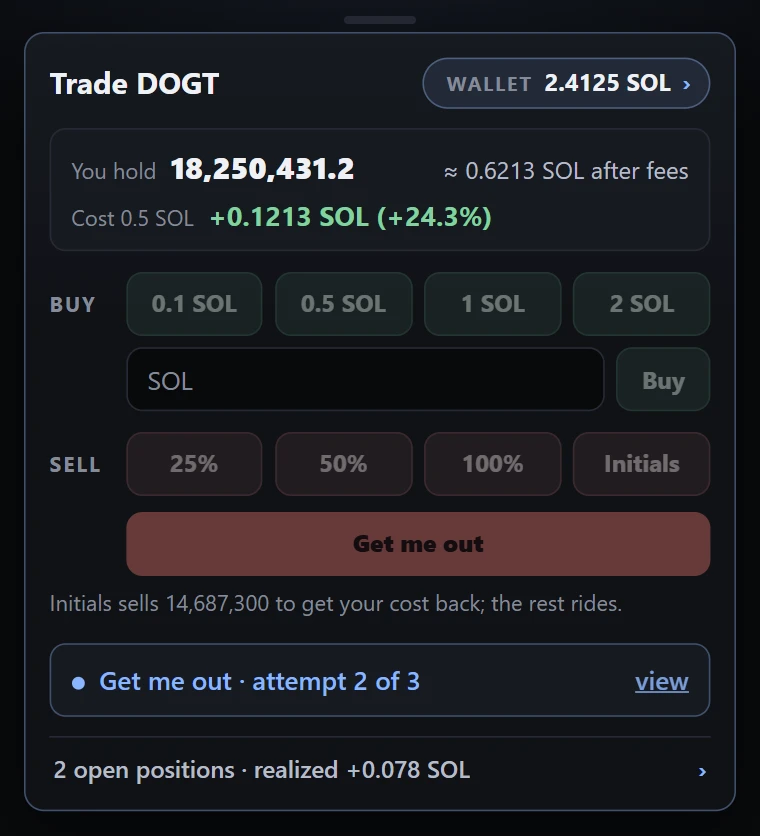
The big red button is for when you want out now. It:
- sells your whole position,
- takes whatever price the market gives, with no slippage limit,
- and if a try hasn't landed after a couple of seconds, sends again with a higher priority fee.
The card counts the attempts as it goes. Out of the box that's up to 3 tries, 2.5 seconds apart, doubling the priority fee each time. All three numbers are yours to change in Settings.
Want your slippage limit to apply? Use Sell 100% instead. If Get me out gives up, you still hold the coin: press it again.
Positions and P&L
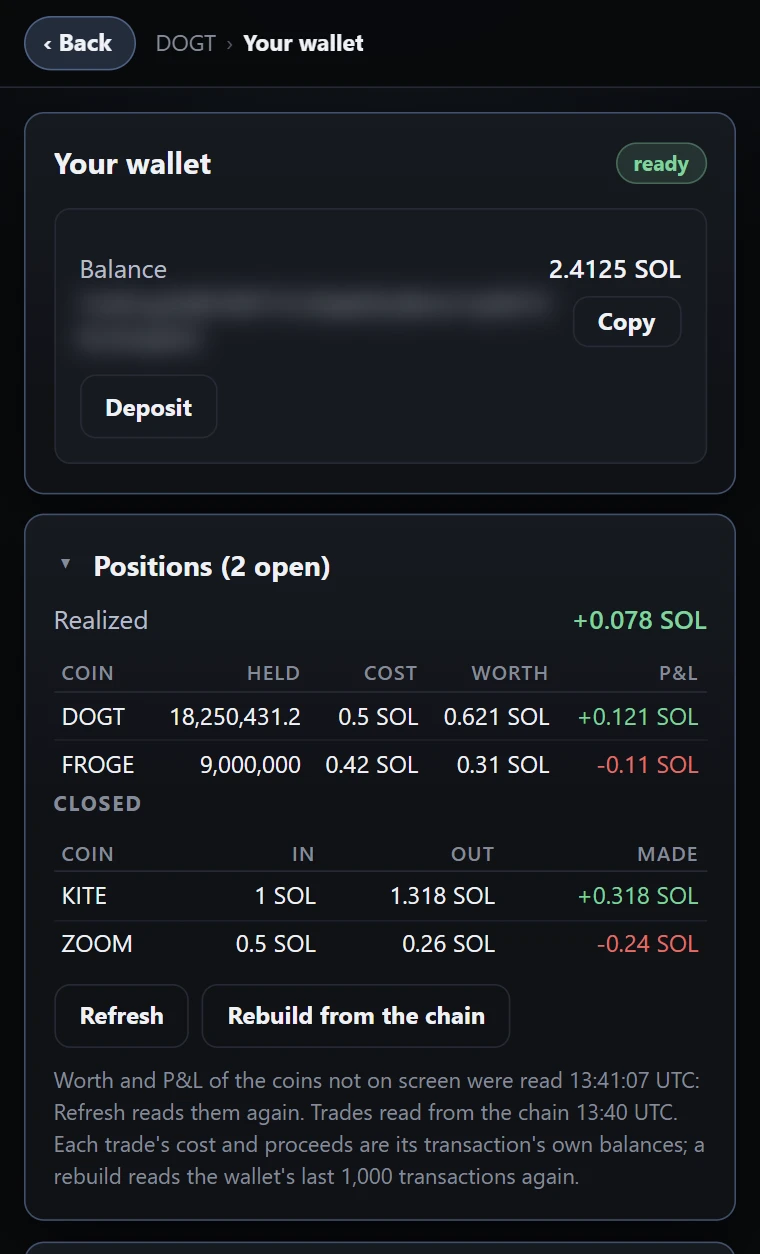
Click the wallet button on the trade card, or the positions line at its foot, to open your wallet's page. Back returns you to the coin.
- Realized
- The total your closed trades have made or lost.
- Open positions
- For each coin you hold: how much, what it cost, what it's worth now, and your P&L.
- Closed
- For each coin you're out of: the SOL that went in, the SOL that came out, and what you made.
- Refresh
- Reads again what your open coins are worth.
- Rebuild from the chain
- Reads your wallet's last 1,000 transactions again. Use it if a number ever looks off.
Every number comes from the chain itself: each trade's cost and proceeds are what actually left and entered your wallet in that transaction.
Coins paired with another token
Some coins trade against another token, like USDC or PUMP, instead of SOL. You still buy and sell them with SOL and the same buttons. Hidden Hand goes through the other token for you.
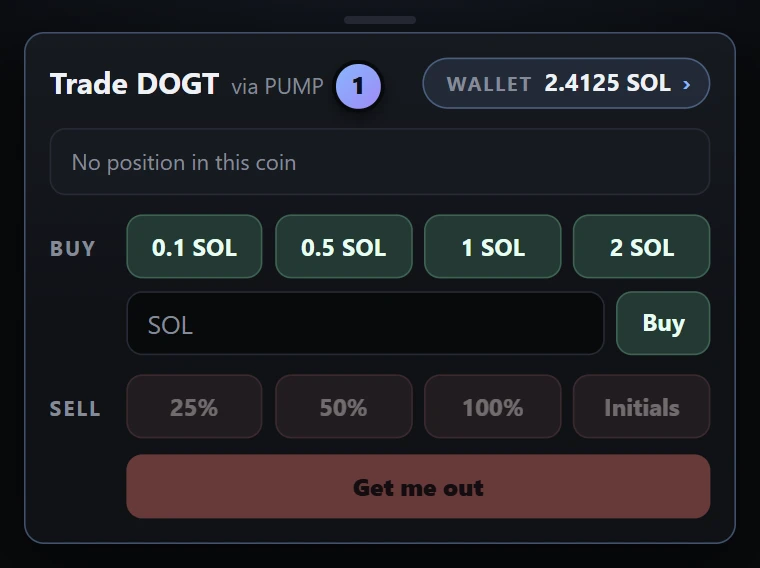
- "via" and the token's name beside the coin tells you this one is paired, and with what.
How a paired trade goes
- Most buys are one transaction. When the token's own pool is on PumpSwap or Meteora DLMM, the whole buy happens together or not at all. It can spend a touch less SOL than you asked for, up to 1%, and never more.
- Other buys, and every sell, take two steps: SOL to the token and the token to the coin, or the other way round for a sell. The card shows "step 2 of 2" on the way.
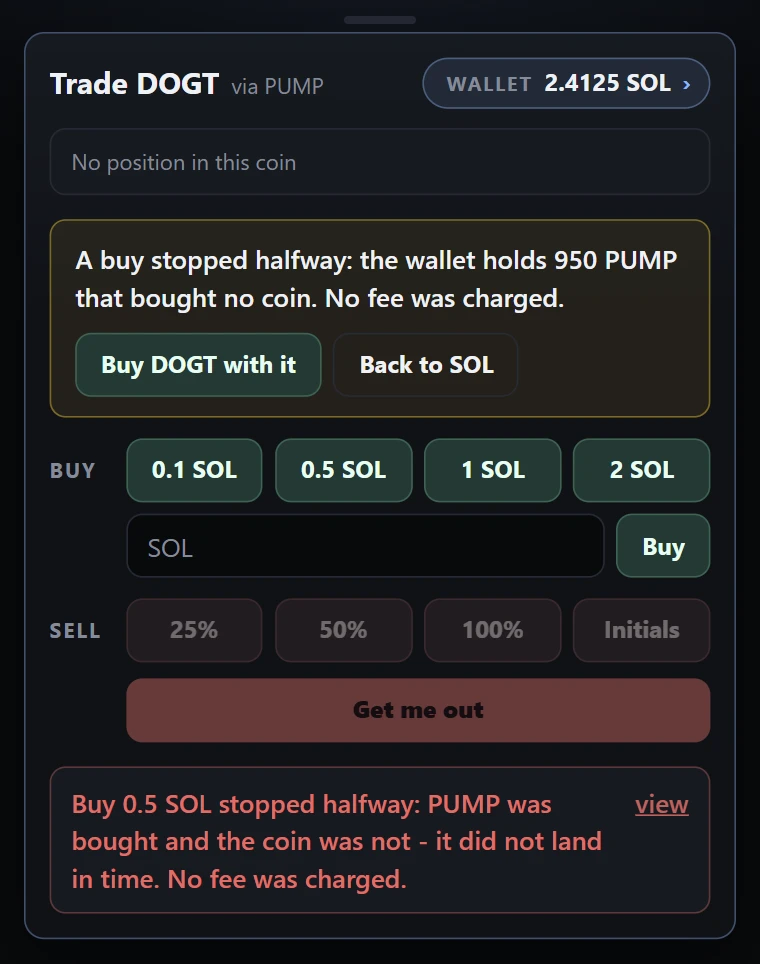
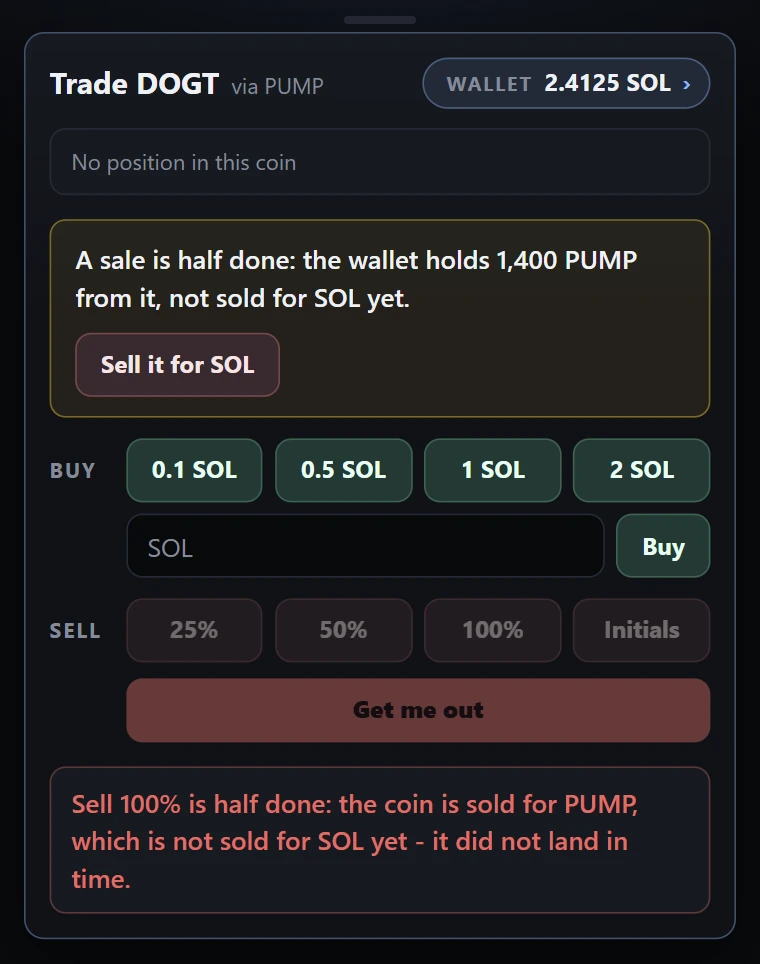
If a two-step trade stops halfway
Once in a while the first step lands and the second doesn't. Your money hasn't gone anywhere: you're holding the token in between, and the card gives you the way on.
Where you can trade
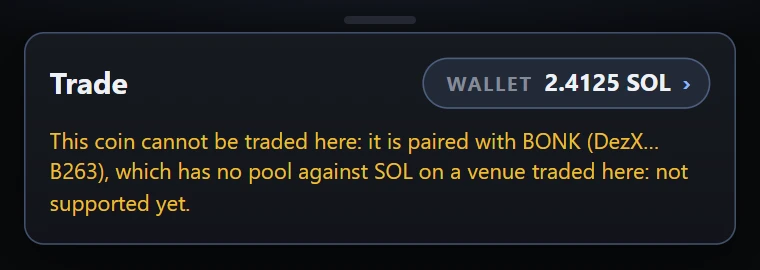
Pump's bonding curve and PumpSwap, Raydium's LaunchLab and CPMM pools, and Meteora's DBC, DAMM v2 and DLMM pools. If a coin trades somewhere else, or is paired with a token that has no pool against SOL on one of those, the card tells you it can't be traded here. Its intelligence still works.
Pop the trade card out
Trading with the chart full screen, or on a second monitor? Take the trade card with you.

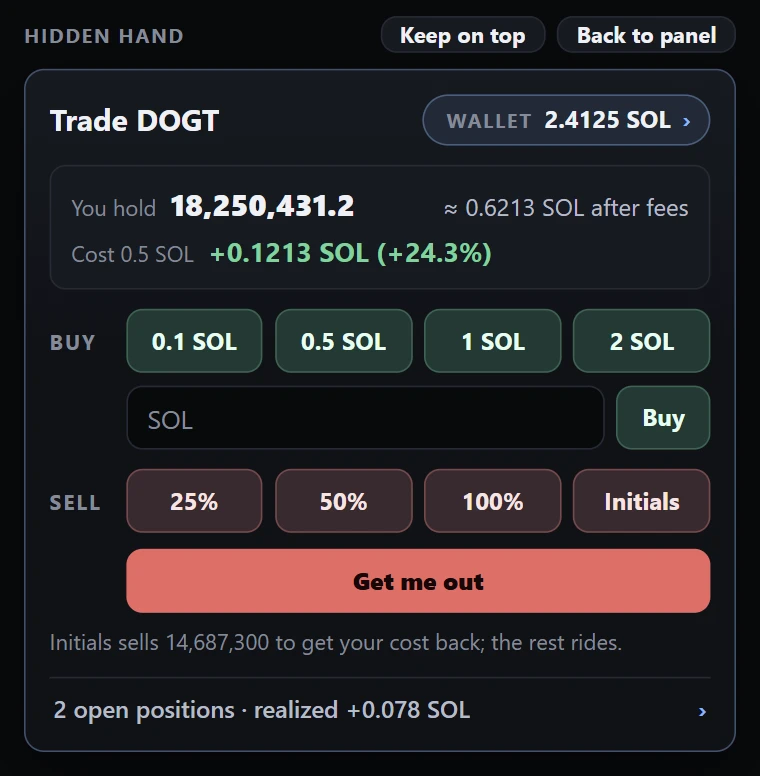
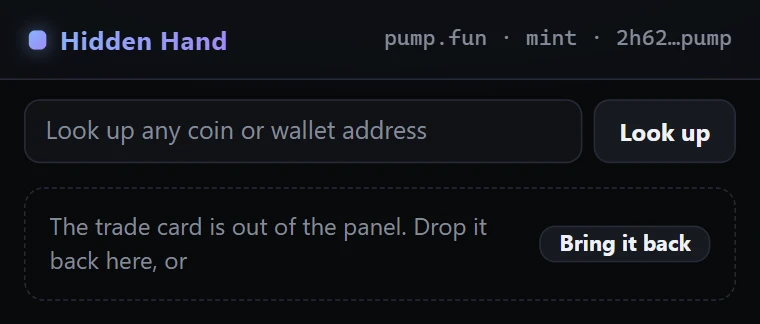
- Drag the grip off the panel and let go wherever you want the card. Pressing the grip pops the card out too.
- Keep on top
- Holds the card above your other windows, so it's still there when you click on the chart.
- Back to panel
- Puts the card back. So does closing its window, or dragging the window back over the panel.
- It follows the coin
- The card trades whatever coin is open in the tab in front, exactly as it does in the panel.
- It needs the panel
- The card's window closes when the side panel closes. Keep the panel open while you trade from the card.
Withdraw
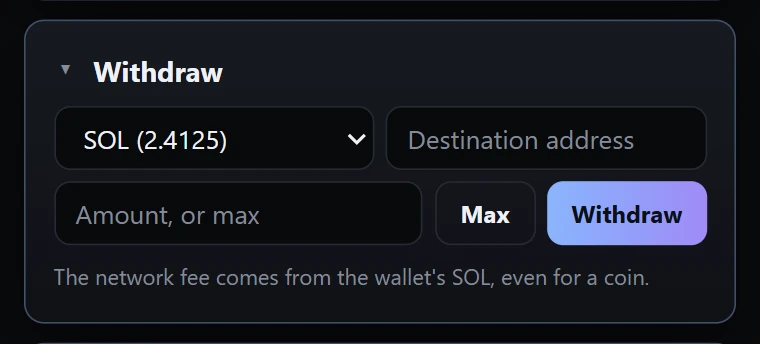
Your SOL and your coins are yours to move whenever you like. Open your wallet's page and unfold Withdraw.
- Pick what to send: SOL, or any coin in the wallet.
- Paste the address you're sending to.
- Type an amount, or press Max.
- Click Withdraw.
The withdrawal is checked against the chain before it's sent. One that would fail isn't sent, and the card says why. The network fee comes out of the wallet's SOL, even when you're sending a coin.
Settings
Open your wallet's page and unfold Settings. A change is saved as soon as you leave the box, and it's used from the next trade on.
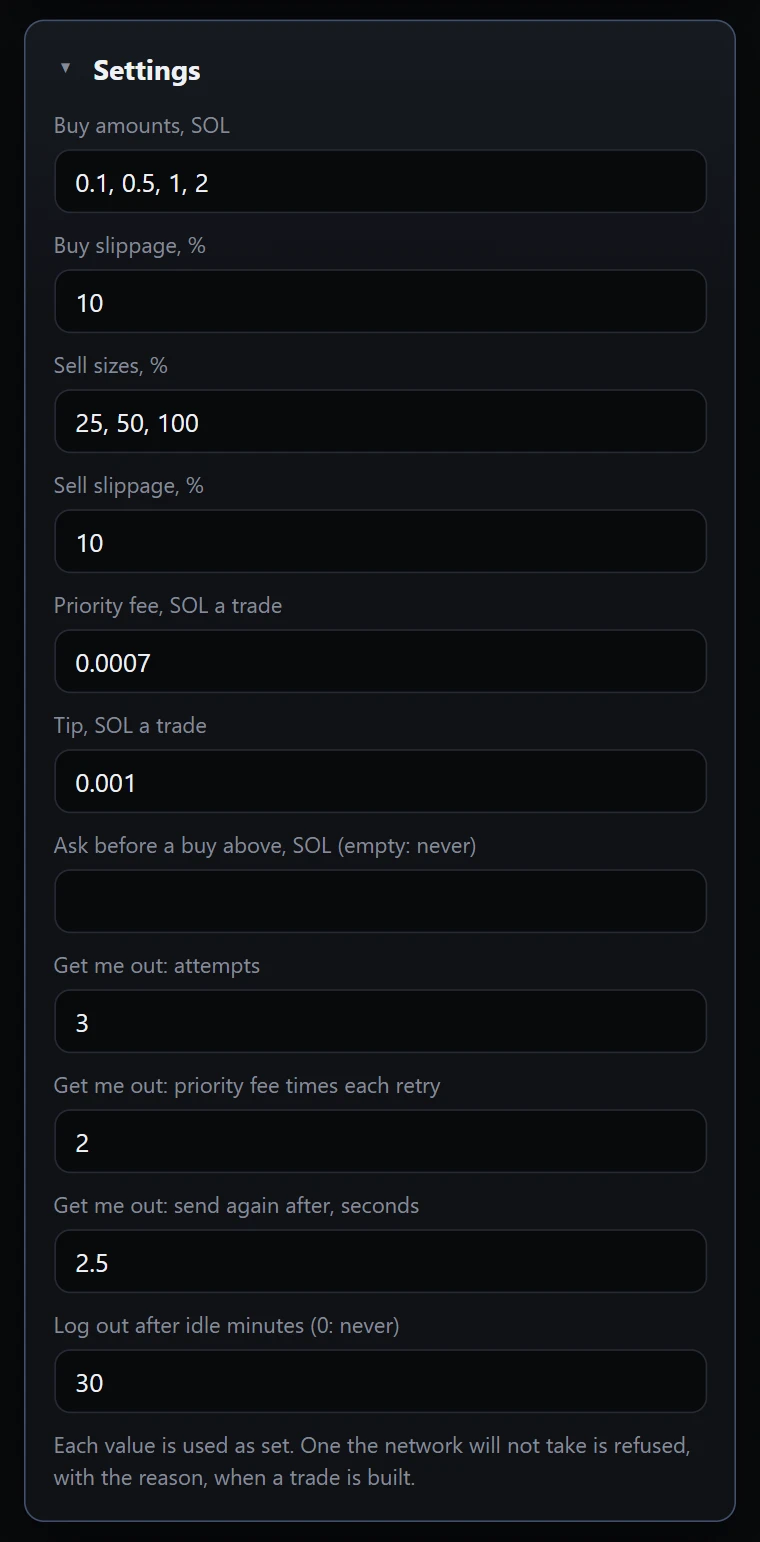
| Setting | Starts at | What it does |
|---|---|---|
| Buy amounts, SOL | 0.1, 0.5, 1, 2 | The quick buy buttons. Separate them with commas. |
| Buy slippage, % | 10 | How much worse than the quoted price a buy may fill. Past that, the buy fails and nothing is bought. |
| Sell sizes, % | 25, 50, 100 | The sell buttons. |
| Sell slippage, % | 10 | The same limit for sells. Get me out ignores it. |
| Priority fee, SOL a trade | 0.0007 | What each trade pays Solana's validators to be picked up fast. Raise it when the network is busy and trades aren't landing. |
| Tip, SOL a trade | 0.001 | What each trade pays to be rushed to the next block. Set it too low and trades can be refused. |
| Ask before a buy above, SOL | empty | Buys bigger than this ask "Buy … SOL?" first. Empty means never ask. |
| Get me out: attempts | 3 | How many times Get me out tries. |
| Get me out: priority fee times each retry | 2 | Each retry multiplies the priority fee by this. |
| Get me out: send again after, seconds | 2.5 | How long it waits for a try to land before sending the next. |
| Log out after idle minutes | 30 | The wallet locks itself after this long without activity. 0 means never. |
Each value is used exactly as you set it. If you set one the network won't take, the trade is refused when it's built, and the card tells you the reason.
Passwords, backups and keys
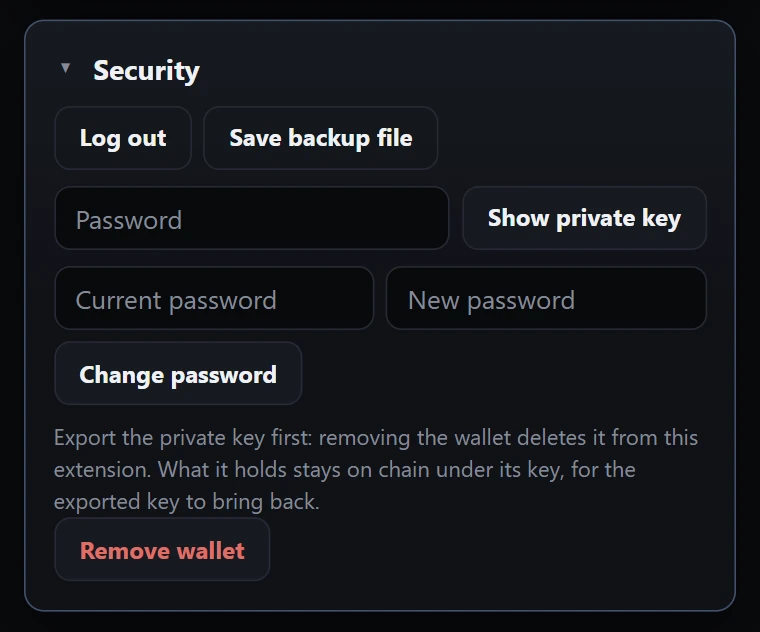
- Log out
- Locks the wallet. Trading needs your password again. It also locks by itself when idle, and whenever you close the panel or Chrome.
- Save backup file
- Saves a fresh copy of the backup file to your Downloads.
- Show private key
- Type your password to see the wallet's private key. Anyone who has it controls the wallet, so keep it offline and never paste it into a website.
- Change password
- Type the current password and the new one. A new backup file is saved under the new password. Older files still open only with the old one.
- Remove wallet
- Deletes the wallet from the extension. What it holds stays on the chain, under its key. Withdraw first, or make sure you have the backup file or the private key.
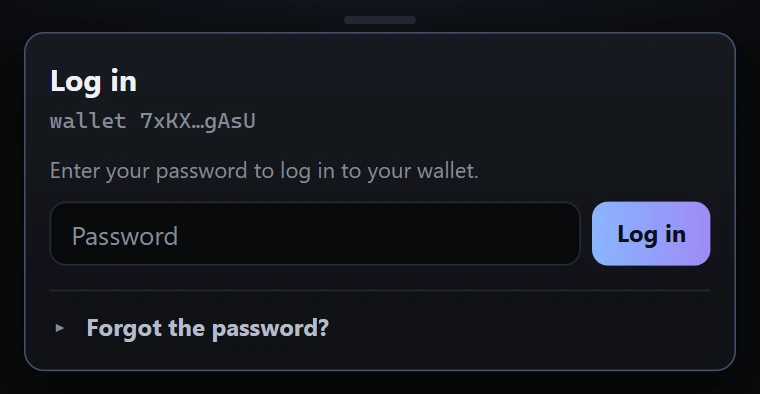
What brings a wallet back
- New computer, or the extension was removed
- Install Hidden Hand, open the panel, and use Restore from a backup file with the file and your password.
- Forgot the password
- The backup file can't help: it's locked with that password. The wallet comes back only from its private key, if you exported it. Remove the wallet, then import the key with a new password.
- Lost everything
- Without the password and without the private key, nobody can open the wallet. That's the whole point of the key never leaving your device.
Part 5 · Help
Messages and fixes
What the panel says when something isn't right, and what to do about it.
The panel
- No coin or wallet on this page
- You're not on a coin or wallet page of a site Hidden Hand reads. Open one, or paste an address into Look up. Where it works
- The page line is right but the card says "No record"
- The service has never seen that coin trade, or that wallet has no linked group and no trades in the last 30 days.
- The data service is not reachable, or "service offline"
- The panel can't reach our servers. Check your connection and press Try again. If the site you're on is working and the panel still isn't, it's us, and it'll be back shortly.
- The panel shows the wrong coin
- It follows the tab in front in its own window. Click the tab you mean, or reload the page.
- The panel doesn't open
- Check that Hidden Hand is switched on at chrome://extensions and that Chrome is version 137 or newer.
Trading
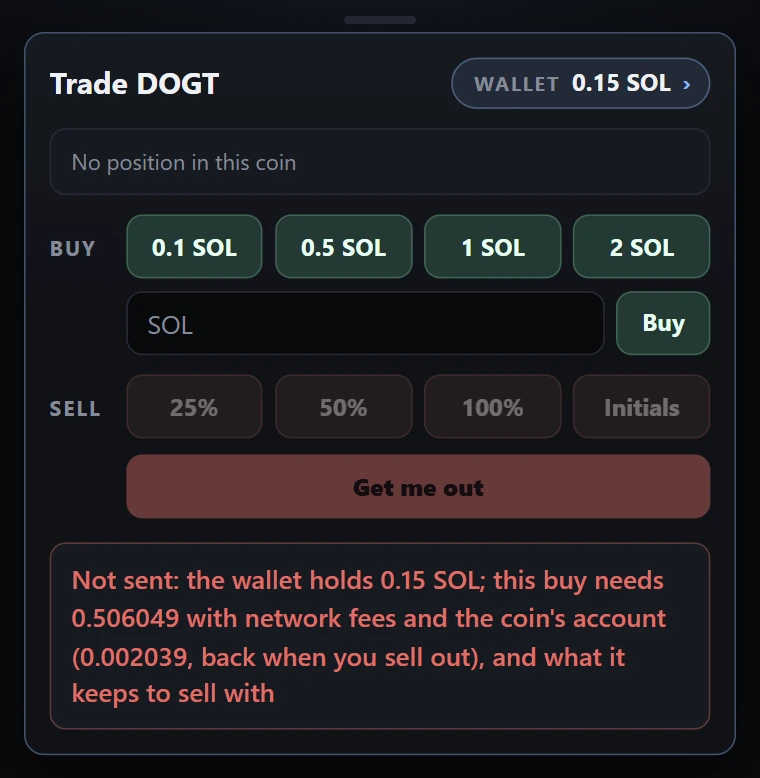
- Not sent: the wallet holds…
- You don't have enough SOL for that buy. It needs the amount, the network fees, a small deposit for the coin's account that comes back when you sell out, and enough left over to sell with. Buy less, or add SOL.
- …failed on chain
- The trade reached the chain and was turned down, most often because the price moved past your slippage limit. Nothing was bought or sold. Try again, or raise the slippage in Settings.
- …did not land
- The trade never made it into a block and has expired. Nothing changed. Try again, and raise the priority fee if it keeps happening.
- Get me out gave up after 3 attempts
- None of the tries landed. You still hold the coin. Press it again, or raise the priority fee.
- …stopped halfway, or is half done
- A two-step trade on a paired coin got through one step. Use the button the card shows to finish or undo it. Paired coins
- …its own pool would take about …%: buy less
- A paired coin, and the token it goes through doesn't have the depth for a buy that size. Use a smaller amount.
- This coin cannot be traded here
- It trades somewhere the panel doesn't, and the message names where. The coin's card still works.
- Trading is coming soon
- Trading hasn't been switched on for your copy yet. The card turns itself on, so there's nothing for you to do.
- wrong password
- Try again, and check Caps Lock. If it's truly forgotten, see what brings a wallet back.
- A position's numbers look wrong
- Open your wallet's page and press Rebuild from the chain. It reads your trades again from the chain itself.
Good to know
- Is the intelligence really free?
- Yes. Every card, on every coin and wallet, with or without a trading wallet.
- What does the extension see?
- The coin or wallet address in the page's web address, on the nine sites above. Nothing else on the page, and no other sites. If you trade, our server also sees your trading wallet's address, so the panel can show your balance and P&L. Privacy has the details.
- Where is my key?
- On your device, encrypted with your password. It's never sent anywhere. Trades are signed on your device, and only then sent to the Solana network.
- Where do the numbers come from?
- The chain. Every trade and transfer of every coin we follow, read as it happens, plus a model of which wallets belong together that's rebuilt every night. Research shows what that turns up.
- Does a clean score mean it's safe?
- No. It means insiders don't hold much of it right now. Read the alerts, the pools and the dev's record too, and only trade what you're happy to lose.
- Something missing here?
- Email hello@hiddenhand.trade and tell us. We read everything.
This guide covers Hidden Hand 0.9. Last updated October 9, 2026.